Free Professional Invoice Template

Word, Excel and PDF · Free, no signup · Updated October 4, 2026

The professional template adds the fields that business clients' accounts-payable teams look for: a purchase order or reference number, a project name, and a dedicated block for bank transfer details.

Those small additions matter. Larger companies match every invoice to an approved purchase order before paying, and an invoice without the reference is often parked until someone chases it.
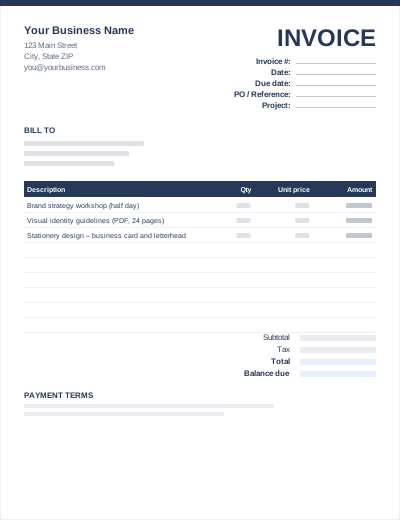
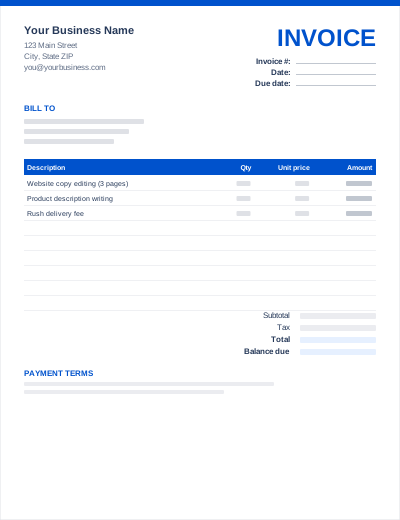
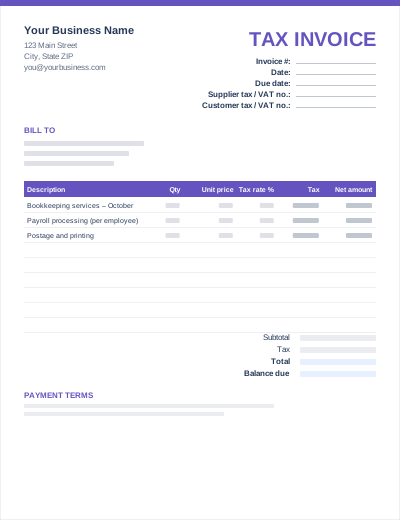
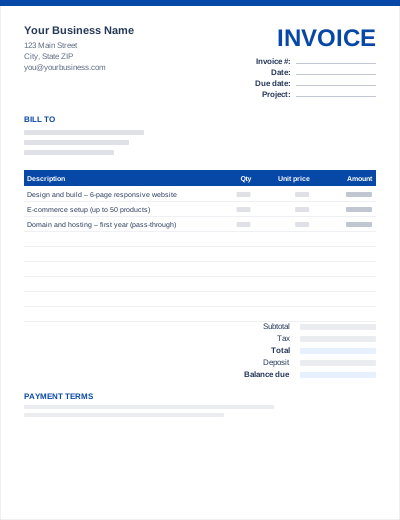
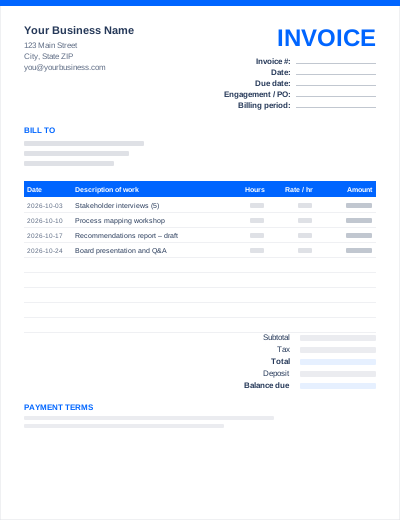
Preview of the Professional Invoice template layout

What's in the template

  • Line-item columns: Description, Qty, Unit price, Amount
  • Your details, client (Bill to) block, invoice number, invoice date and due date
  • Extra header fields: PO / Reference, Project
  • Subtotal, tax at a rate you set, total
  • Amount paid and balance due
  • Bank-transfer details block
  • Payment terms and instructions section

Sample entries show how to fill it in; replace them with your own. All three files share the same layout. The Excel version calculates line amounts and totals; the PDF is a blank, print-ready form.

Best for

  • Agencies, studios and consultancies billing companies
  • Invoices that must quote a client PO number
  • Bank-transfer payments with full account details
  • Businesses that want a formal, conservative look

How to use this template

  1. Download the format you prefer: Word to edit like a document, Excel for automatic totals, or the PDF to print and fill in by hand.
  2. Add your details: business name, address, contact details and, if you have one, your logo and tax number.
  3. Fill in the client and invoice details: who you are billing, a unique invoice number, the invoice date and the due date.
  4. List what you are billing, one line per item or task.
  5. Check the totals (Excel calculates them; in Word, work them out or use the online generator), then add payment terms and how to pay.
  6. Save as PDF and send. See how to send an invoice.

Prefer not to download anything? Fill in the same fields in the free online invoice generator and save the result as a PDF.

Tips for professional invoices

Always ask for the PO number first

If a client uses purchase orders, ask for the number before you start the work and put it on the invoice. The purchase order vs invoice guide explains why.

Address it to accounts payable

Send the PDF to the client's AP inbox and copy your project contact. Our invoice email templates include wording for this.

Show international bank details in full

For cross-border payments include the IBAN or account number, SWIFT/BIC, bank name and the account holder's name exactly as registered.

Frequently asked questions

What makes an invoice look professional?

Consistent numbering, accurate client details, specific line descriptions, clear payment terms and a clean layout. Branding helps, but missing information is what delays payment.

Where do I put my business registration or tax number?

Under your company address in the header. If you are registered for VAT or GST you will usually be required to show it; the tax invoice template has dedicated fields.

Can I add a late-payment clause?

Yes, in the notes. Only apply a late fee that you agreed with the client in advance and that is allowed where you operate. See handling late payments.